t-dsc01860.jpg

Introduction

Ask a flight simulation enthusiast what he wants most of all when playing a flight simulation, and 9 out 10 times the answer will be “immersion”. We want to submerge ourselves in an alternate reality, we want to fool ourselves that we’re actually flying an airplane, even though we know full well that it’s all just ones and zeros in our computer. We want to “suspend our disbelief” for as long as possible.

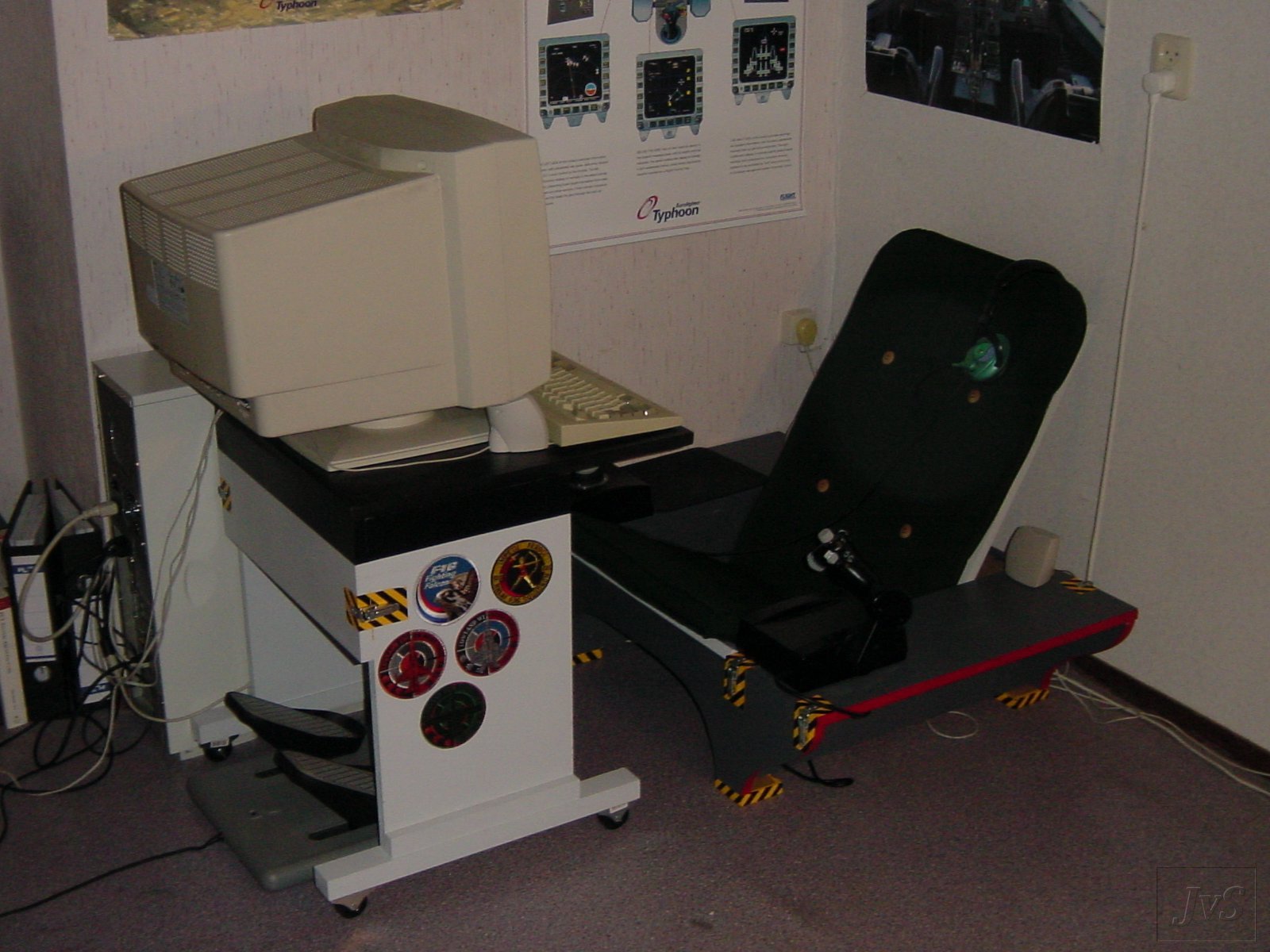
My personal quest for immersion led me to purchase a Thrustmaster Cougar HOTAS and also to build my SimSeats. But the biggest hurdle still remained: the keyboard. Cockpits don’t have keyboards, so I didn’t want to use one either. There are ways around this, of course. There are many Cougar profiles that load most, if not all, necessary functions onto the stick and throttle buttons, but I can never remember them, and trying one button after another usually results in losing my canopy, my landing gear and most of my stores. Not a good way to start a mission when all you want to do is set Master Arm to On.

Most people simply use the mouse to click on the on-screen Master Arm switch, but that never appealed to me, for much the same reason that I don’t like using the keyboard: cockpits don’t have computer mice, just like they don’t have keyboards. And if you’re anything like me you won’t remember to switch Master Arm on until you’re well into the heat of the action, and letting go of the stick at that moment to grab the mouse is usually a very bad idea.


Requirements

There was nothing else to do: I simply had to build my own button panel. My Campground squadmates and myself had wanted to build something similar earlier, but that had – for different reasons – not panned out. But I still had the X-keys board from that abortive attempt. I decided to also incorporate the CB radio that we used for comms at LAN meets. These were the things I wanted to aim for:

Buttons via X-keys
I had the X-keys, and its 96 key limit was not a problem for me. So why not use it?
CB radio built-in
I decided to make the CB radio an integral part of the dash, and also to incorporate the channel and PTT switches.
Compact
Small is beautiful. It’s also more convenient to take to LAN meets.
Attractive
I’d seen other people’s button panels at LAN meets, but they were usually built for utility, not for looks. I wanted to build something that would at least remind people of a real cockpit.
Laid out like an F-16 panel
Because it would help me find my way around. Also simply because it looks cool.
Lighting
Flight simming in darkness or near-darkness is a neat way to increase that elusive immersion, but if you can’t see anything you’ve got bigger problems. So it would have to have some sort of lighting.

Front panels

The first order of business was to see what sort of stuff I had lying around to build the panel from. I turned up a piece of multiplex wood, about 6 mm. thick, that I decided would do nicely as the frame. I also decided to create the individual front panels from plexiglass (acrylic plastic sheet) because I wanted to add backlighting to the panel. I hoped that adding LEDs behind the plexiglass would create a sort of light halo around the buttons (that didn’t work quite as well as I had hoped, but we’ll get back to that later). I did my usual sketchwork in TGIF to get an idea of how things were going to look. I even modelled most of the front of the panel in povray so I could get an even better idea.

Design in TGIF Design in POV-ray
Early designs in TGIF and POV-ray

In addition to two MFDs and an ICP I also decided to add two sets of “eyebrow” buttons for other functions, for a total of 5 panels. The eyebrow panels would control things like master arm, canopy and landing gear. As far as the ICP was concerned I decided to simplify things a little. I would omit the FLIR controls on the right side and also two of the four thumbwheels. These were not supported by Falcon anyway, and it gave me the opportunity to miniaturize things a little further. I planned to use the two remaining thumbwheels for HUD color and brightness. I also decided to replace the four-way DCS switch by two separate up/down switches, again to simplify and miniaturize things.

I had already picked the push buttons I wanted to use from the Conrad website. I chose these because they were more or less the size I wanted and because they were available in round and square shapes and in different colors. They also weren’t very expensive. Always a good thing, especially if you need 74 of them. They had a cap that was 8 mm. square on top (or 9 mm. in diameter for the round ones) and that widened to 12 mm. in diameter further down. Unfortunately the widened cap didn’t fit under the plexiglass covers, so I would need to think of something to solve this problem.


Buttons and cross section when mounted

The wooden frame was cut to size, and the holes for the buttons to peep through were cut out. The plexiglass panels were cut to size and the positions of the holes for the buttons were marked. Then a small hole was drilled at the center of each hole. Next I used a 14 mm. spade drill to enlarge the hole a little and to counterbore a hole for the cap to fit into. Next the hole was enlarged to 8 mm. using a regular drill and finally I used a file to create an 8 mm. square hole. Luckily the file itself was exactly 8 mm. square, so when the file fitted through the hole I knew it was just big enough for the button. Repeat another 61 times for all the other square buttons. For the 12 round buttons use a 9 mm. regular drill and skip the filing.


The tools and a sample of the result

Now it was time to mount and connect the X-keys board and the buttons.

X-Keys and buttons

The X-keys board that I used was a PS/2 version which has connections for 96 buttons, arranged in a 12 columns by 8 rows matrix. It works by putting an electric voltage on each of the rows in turn, and then “feeling” which of the columns returns the same voltage. The diagram below shows how the board puts a voltage on row 5 and then detects a voltage on column 4. This tells it that the button on those coordinates was pressed.


X-keys in action

The way I wired the X-keys board to the buttons is shown below. Click on the thumbnails to download a larger, 4-page PDF version.

Wiring 1Wiring 2Wiring 3Wiring 4
Wiring diagram

The wires connecting the rows are color-coded in this diagram. The wires connecting the columns are colored blue-gray. Buttons belonging to the same column have been grouped together and labeled. The last page shows how the groups and columns have been connected to the X-keys connector. This picture has been drawn as if looking onto the connector on the central PCB, i.e. looking at the back of the X-keys board.

All buttons are mounted on various pieces of stripboard. I’ve used 6 of these: one each for the MFDs, one each for the eyebrow button panels, one for the ICP and one as a central board where the connections for all the buttons come together. This last board has a header connector into which the X-keys board plugs. So in the end the central portion of the dash has three PCBs stacked on top of each other: first the PCB on which the buttons for the ICP are mounted, then the central PCB where all the wires from the buttons come together, and finally the X-keys board itself, which is plugged into the connector on the central PCB.


X-keys removed

Central PCB removed
Three layers of PCBs Close-up of the central PCB (solder-side).

Complete

X-keys removed

Central PCB removed
Assembled X-keys removed Central PCB removed

Note that the connections shown in the top-right picture here are flipped vertically with respect to the drawing above (since the drawing looks at the front of the connector, and we’re looking at its back). Also note how the row-connections have multiple wires (a wire to one button in each of the column groups) soldered to them, whereas the columns have only a single wire (going to all the buttons in the column group).

A note about diodes. Many people will tell you that you need a diode in series with each of the switches. The problem this solves is shown in the following diagram.


3-button oops

Once again the button at row 5, column 4 is pressed, but this time two other buttons on row 3, one of which is also on column 4 are also pressed. Now, when the X-keys board puts a voltage on row 5 a current flows through those switches via column 4 and row 3 to column 8. The X-keys board sees a voltage appear on columns 4 and 8 and can only conclude that two switches on row 5 were pressed: one on column 4 and one on column 8. The switch at row 5, column 8 appears as a ghost switch: it seems to be pressed but it isn’t.

The usual solution to this problem is to make use of the fact that the current through the switch at row 3, column 4 flows in the reverse direction than normal. So a diode in series with the switch, allowing current to flow from the row to the column but not in reverse will eliminate this problem.

I chose not to use diodes because all my switches (except for one) are momentary pushbuttons, so I will never have a situation where more than 1 (alright, maybe 2) switches are closed. I simply won’t have this problem. It’s not about cost: diodes are cheap as dirt. The 1N4148, a general purpose type and eminently useful for this, costs a few cents a piece. Buy 100 at a time and it shouldn’t set you back more than a few euros/dollars. It’s more a question of keeping it as simple as possible, and eliminating any unnecessary work. And in my book, soldering 82 diodes definitely counts as work.

Connecting the CB radio

To get the CB radio to work with the SimDash, the following had to be connected:

  • a microphone
  • channel up/down buttons
  • push-to-talk switch

The CB set that I wanted to use was a “CV Mobil 4000″, again from Conrad Electronic. This set was special because the channel up/down buttons were located on the microphone instead of on the set itself, so if I was going to eliminate the microphone and connect the microphone from my headset, I also had to find somewhere to put the channel switch. I also had decided to use a little trick to operate the PTT switch: I wanted to connect it to one of the keyboard LEDs (Num Lock, Caps Lock or Scroll Lock) so that I could control it “in software”, as it were. The plan was to program a button on my Cougar HOTAS to toggle the Scroll Lock LED on the keyboard, and thereby control the transmitter.

This also meant that I needed to incorporate a keyboard PCB from which I could use the LED connection. This would have to be daisy-chained to the X-keys board. In normal use, when one of the X-keys buttons is pressed the X-keys board will temporarily “take over” the keyboard control lines and send its own data, otherwise it will simply act as a pass-through for the keyboard that it is connected to. So if any program sets the Scroll Lock status, my amputated keyboard control PCB will still turn on its Scroll Lock LED. If we then connect the LED output to a relay and connect the switch inside the relay to the PTT switch of the CB radio we’re in business.

Unfortunately, the LED output has insufficient power to trigger a relay, so the signal had to be amplified. Using some barely remembered electronics theory and some trial and error I designed a basic transistor circuit to do just that.


Controlling the Push-To-Talk switch

Now I still had a little problem. The PS/2 version of the X-keys board can only be programmed using the attached keyboard, but since I had daisy-chained an amputated PCB control keyboard to the X-keys board I could no longer program the X-keys. The solution that I used was to make the X-keys programming switch a triple-pole switch, so I could disconnect the X-keys board from the keyboard PCB and instead connect it to a female PS/2 connector at the same time that the X-keys was switched to programming mode. By connecting a keyboard to that PS/2 connector I could use it to program the X-keys board. I only needed to switch the PS/2 data and clock lines so I needed only two additional poles on the switch.

The keyboard control PCB and the PCB from the CB’s microphone were attached to the SimDash, and using some spiderweb soldering the transistor amplifier for the PTT relay was added. The female PS/2 connector was also added, with its +5V and GND lines directly connected to the X-keys and its data and clock lines connected to one side of the X-keys programming switch. The connection from the microphone PCB to the microphone element was cut and replaced with a shielded audio cable to a female 3.5 mm. audio plug (the standard plug type for headset microphones). By plugging the microphone lead from a headset into this socket the headset microphone can be used as the microphone for the CB radio. Finally the channel up/down switch was connected to the up/down buttons on the microphone PCB (these can be seen on the right side of the microphone PCB).


Complete

Complete
Keyboard PCB and
PTT amplifier and relay
CB microphone PCB

Lighting

I had planned on two different ways of lighting the SimDash: backlighting in the MFD and ICP panels (there was no room in the eyebrow panels, unfortunately) and floodlighting using a strip of electro-luminescent (EL) material. The brightness of the backlighting was to be controllable using a potmeter. I had found a schematic for a LED dimmer at the excellent Mike’s Flightdeck website. I built the circuit on a tiny piece of stripboard and attached it by mounting the 7805 voltage regulator on an M3 bolt that happened to stick out at the back of the dash. This could then function as a crude heatsink. The circuit is powered by the 12V power supply that also feeds the CB radio, and it feeds 12 high-intensity LEDs: 4 each behind the ICP and the MFDs. I had hoped that the light would enter the plexiglass, bounce around in it a few times and illuminate all sides of the buttons. In practice only the inner edges of the MFD buttons (where the LEDs are situated) are lit, and in the ICP the lighting is very uneven, with the buttons closest to the LEDs very bright and the buttons further away very dim.


LED dimmer

The floodlighting was created using a strip of electroluminescent material ordered (once again) from Conrad Electronic. It is powered by an “invertor”, which is fed by the +5V power supply from the PS/2 connector, and which outputs 110 volts of alternating current, feeding the EL strip. The EL strip provides a fairly low light level, but when you’re sitting in the dark it’s actually more than enough. The only problem is that, since it is only around 14 cm. long, it really only illuminates the center portion of the SimDash. In retrospect I probably should have used two strips to illuminate more of the dash.


Complete

Complete
Backlight Back + floodlight

Finishing up

With all the electrics fitted it was time for final assembly. The plexiglass fronts and the button PCBs were mounted by drilling holes through plexiglass, wood and PCBs and putting M3 bolts through them. They were fixed using some washers and nuts.


Everything mounted

Next up was the support frame that would slide onto the table surface and hold the front panel. This was, once again, first sketched using TGIF, and both halves of the frame were cut from some left-over wood. Holes to mount the CB radio were drilled, and a bit of wood was glued between the two halves to set them the correct distance apart.


The support frame for the front panel.

After that I fitted the hood. This was glued to the support frame but not to the front panel. I still wanted to be able to remove the front panel for modification and repair. First I fitted the center piece, then the slanted pieces and then the uprights to the left and right. This was mostly a case of measuring, cutting, fitting and sanding until things fitted well enough.


Fitting the hood.

The hood also held the EL strip and invertor for the floodlighting, two LEDs controlled by the X-keys board, a Scroll Lock LED controlled by the keyboard control PCB (thereby doubling as a “send” indicator for the CB radio) and the CB radio itself. To connect the hood to the front panel I used two DB15 (also known as gameport-) connectors.


Hood/frontpanel interconnections.

And with that it was time to paint everything. I used various types of automotive spray paint on multiple coats of primer, each of which was followed by sanding. I used satin black for the wooden hood and front panel, and anthracite for the plexiglass panels. When everything was painted I printed out labels for the ICP and eyebrow buttons on sticky-back paper and applied them.


Primer applied Wood painted, plexiglass still clear


Everything painted, no labels yet Labels applied

Lessons learned

As always, there were some things that didn’t quite work out as I had planned.

Lighting
The backlight didn’t really work as planned. I could have made a prototype, but I didn’t really have enough material (plexiglass in particular) to waste on one. The floodlight, on the other hand, actually works very well. Just the eyebrow buttons could use some more illumination.
Construction
The construction works well in general, but all the work needed to fit the buttons under the plexiglass was a nightmare. And even now, when the bolts keeping the plexiglass fronts to the panel are tightened too much, some of the buttons become permanently pressed. So it’s still not an ideal situation.
Painting
Again, not too bad in general. The grain of the wood is still visible in some places, but you have to stop sanding some time… Did I mention that I hate painting?
Rotaries
I never found a good way to convert the quadrature signals from the rotary buttons to button presses, so they never really worked well. I’ve used some of the eyebrow buttons for HUD color and brightness, and I’ve never really put much effort into the rotaries.

Conclusion

The SimDash has completed my simming experience in ways that I never expected. There is something about having a “real” aircraft panel in front of you that really draws you into the game. Never having to grab the mouse again, or trying to remember a keypress combination is a great way to suspend my disbelief. In fact, I now believe I have found the perfect setup for Falcon 4.0. It consists of these four elements:

  1. A Cougar HOTAS (or equivalent), preferably with a force-sensitive mod;
  2. A Track IR for head tracking;
  3. Shoot (or equivalent) for voice recognition, and
  4. A panel such as the SimDash to make you forget you’re really sitting behind a computer.

You haven’t really played Falcon 4 unless you’ve done it with these four “immersion amplifiers”.

The SimDash panel has been a resounding success, as far as I’m concerned. It does everything I wanted it to do, and it’s small enough to take everywhere I want to take it. I couldn’t imagine going back to mouse and keyboard ever again.